EADDRINUSE error

Did you experience the dreaded EADDRINUSE error when running your Node.js app? This happens when the port you're trying to use is already occupied by another process, preventing your application from starting. Instead of restarting your computer or guessing which process is causing the issue, this guide will show you exactly how to identify and free up the port, allowing you to get back to coding without frustration.
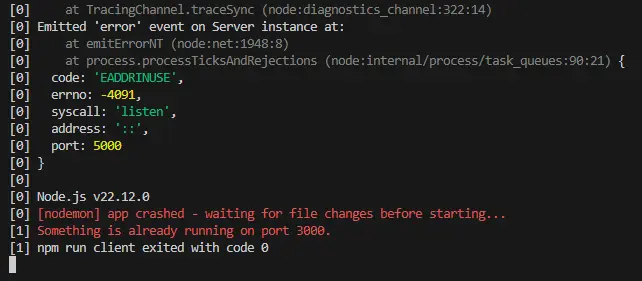
Port Freezer is a simple yet powerful utility tool designed to help developers resolve the common EADDRINUSE error on Windows. When working with Node.js applications, you may encounter this error when the port you're trying to use is already occupied by another process. This tool walks you through easy-to-follow steps to identify and free up the port, or alternatively, change to a new port—ensuring that your application runs smoothly without interruption.
Step 1: Identify the Port in Use
- Open Command Prompt (CMD): Press Win + R, type cmd, and hit Enter. Run as Administrator: Right-click on Command Prompt and select 'Run as administrator'.
- Check for the port in use (e.g., 5000) using the netstat command:
netstat -ano | findstr :5000Look for output like:

Note the PID (Process ID) from the last column (e.g., 14500).
Step 2: Kill the Process Using the Port
- Terminate the process with the noted PID:
taskkill /PID 14500 /F- Replace 14500 with the actual PID from Step 1.
You should see:

- Verify that the port is now free by running the netstat command:
netstat -ano | findstr :5000- If no output is returned, the port is free.
Step 3: Change the Port (Optional)
If you cannot free the port or prefer to use a different one.
- Open your project directory in a text editor (e.g., VSCode).
- Modify the port settings ( if using React, it's usually in package.json or .env file).
- Add a .env file in the project root (if it doesn't exist).
- Inside .env, add: PORT=3001 (or any available port number).
- Replace 5001 with the new port you want.
- Modify the port settings ( If using Express or another backend framework ).
- Change the port variable in your code:
const PORT = process.env.PORT || 5001;
app.listen(PORT, () => console.log(`Server running on port ${PORT}`));
- Save the changes and restart the application.
Step 4: Optional: Automate the Process (PowerShell Script)
If this happens frequently, create a script to automate the process
- Open a text editor and paste this:
$port = 5000
      $pid = (Get-NetTCPConnection -LocalPort $port).OwningProcess
      if ($pid) {
          Stop-Process -Id $pid -Force
          Write-Host "Port $port is now free."
      } else {
          Write-Host "Port $port is already free."
}- Save it as free-port.ps1.
- Run the script by right-clicking and selecting 'Run with PowerShell'.
Step 5: Final Notes
- Always stop the server manually before closing VSCode using Ctrl + C.
- If the port is still in use, restart your computer to free it.
- Use the Port Freezer tool whenever you encounter the EADDRINUSE error.
- Remember to update the port number in your project configuration files.
Conclusion
With Port Freezer, you can easily resolve the EADDRINUSE error and free up ports that are blocking your application. Whether you're debugging or simply managing your development environment, this tool ensures your Node.js projects run seamlessly. By following the simple steps provided, you can avoid common port-related issues and focus more on building your app. Keep this tool handy for a smoother, more efficient development process!